According to Windows Report | Error-free Tech Life, Microsoft is rolling out a new Windows 11 Insider Preview Build 26220.7523, also known as KB5072043, to the Beta and Dev channels. The key change is a rework of the voice typing experience when using the touch keyboard, specifically removing a distracting full-screen overlay that previously appeared. The update shows voice typing status directly on the dictation key itself with subtle animations, leaving the rest of the screen untouched for uninterrupted work. Additionally, Microsoft is testing a new optional “Discover Windows” widget that offers contextual tips and can be added to the Widgets Board or lock screen. This build is available now for Windows Insiders, marking a step toward a more integrated and less intrusive voice input system.

A Long-Overdue Tweak
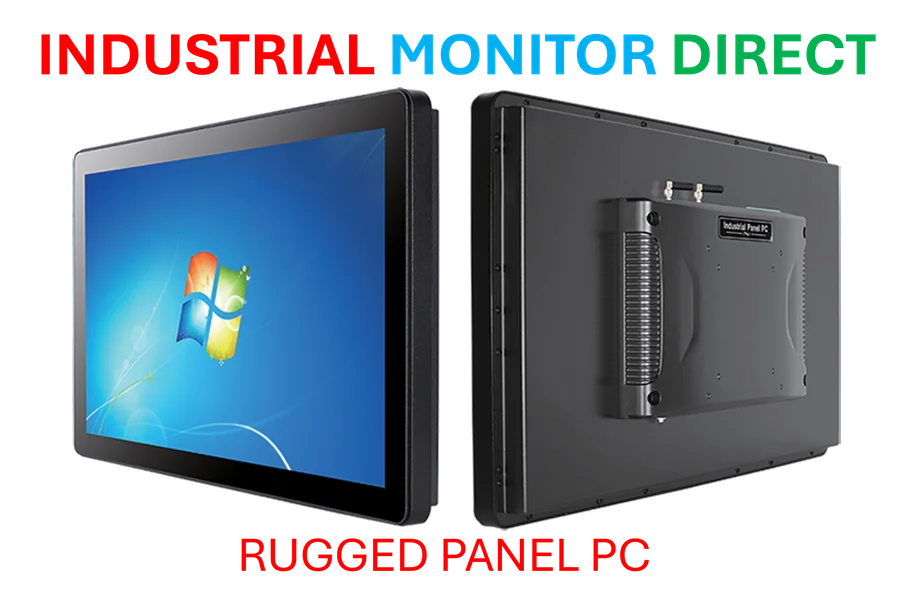
Honestly, this is one of those fixes that makes you wonder why it took so long. The old full-screen overlay for voice dictation was, frankly, jarring. You’d hit the mic button for a quick sentence and—bam—your entire workspace was hijacked. It felt like switching to a completely different app, which is the exact opposite of what a seamless productivity feature should do. For a company that’s been pushing industrial panel PCs and other touch-forward devices where voice input is crucial, this clunky experience was a real weak spot. The new integrated approach is just… sensible. It’s how it should have worked from the start.
The Subtle Art of Not Interrupting
Here’s the thing: the best software features are the ones you use without thinking about them. They don’t break your flow. By shrinking the voice typing UI down to a key-level animation, Microsoft is finally treating dictation as a part of typing, not a separate event. This is a huge win for anyone using a Windows tablet or a 2-in-1 in tent mode. But let’s be a bit skeptical. Will the visual feedback on the key itself be clear enough? On a bright screen or from an angle, will users still be confident the system is listening? There’s a fine line between subtle and invisible.
Widgets, Tips, and the Quest for Engagement
Now, about that new “Discover Windows” widget. On paper, contextual tips are great. Who doesn’t want to learn a handy shortcut right when they might need it? But Microsoft’s history with “helpful” suggestions is, well, checkered. Remember Clippy? The risk is that these tips, even if optional, start feeling like nagging or, worse, ads in disguise. The promise that it’s “designed to stay quiet” is key. If they can actually pull that off—delivering genuinely useful, non-obtrusive advice—it could be a neat little win. But that’s a big “if.” Most of us have learned to tune out anything that smacks of a tutorial.
Why Small Steps Actually Matter
So, is this a groundbreaking update? No. Not even close. But that’s okay. Not every improvement needs to be about AI or a flashy new design. Sometimes, the most meaningful changes are about removing friction and distraction. This voice typing tweak is a perfect example. It acknowledges a real user pain point and solves it with a dose of elegance. It shows someone at Microsoft is actually paying attention to how people use the OS in the real world, not just in a demo. And in the slow, iterative world of desktop OS updates, that’s something worth noting. Let’s just hope it makes it to the stable channel without getting lost along the way.